
Stopline Trade Manager › Help › Stopline Trade Manager for MetaTrader 4
Stopline Trade Manager for MetaTrader 4: User Manual
Version 1.03. The same text as the PDF manual (A4; US Letter), without the inputs appendix. For MetaTrader 5, see the MetaTrader 5 manual.
Stopline Trade Manager is software. It sizes and places the orders you set up and manages them by the rules you choose. It offers no trading account, holds no money and gives no advice or trade recommendations: you decide every trade. Trading carries a risk of loss. A stop or a daily loss limit can act at a worse price than the one you set, for example when the price gaps.
1 About This Manual
Stopline Trade Manager MT4 (in this manual: the EA) is an Expert Advisor for MetaTrader 4 that places and manages your own trades. You decide the direction, the stop loss and the target; the EA calculates the lot from the risk you choose, sends the order and then manages the position with partial closes, breakeven and a trailing stop if you want them. It gives no signals and does not open trades by itself.
This manual describes version 1.03. It covers the installation, a quick start, every tab of the panel control by control, the objects the EA draws on the chart, the automatic management functions, hotkeys, presets and statistics, and it ends with troubleshooting, a glossary and the complete list of inputs.
Video manual (YouTube, with chapters): https://youtu.be/oXPk0I3QVzQ
Conventions
| Style | Meaning | Example |
|---|---|---|
| Bold | A name shown on the screen: a tab, button, field, menu item or dialog. | Trade tab, BUY |
| Key caps | A key or key combination. | Ctrl+N, Shift+B |
| Monospace | An input of the EA dialog, a file or a folder. | Inp_Risk_Value, MQL4\Files |
| – | Not applicable: in the control tables, a control without its own input or without a default hotkey. | – |
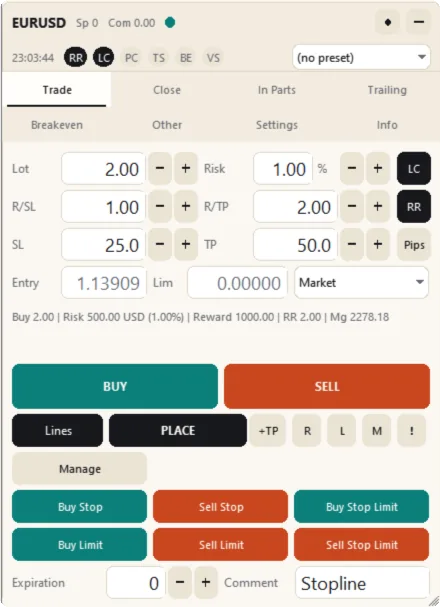
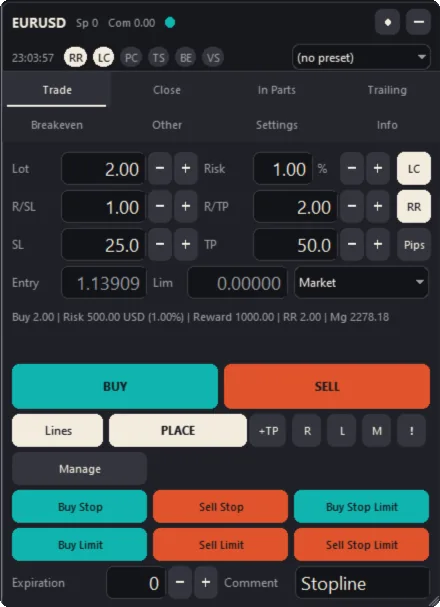
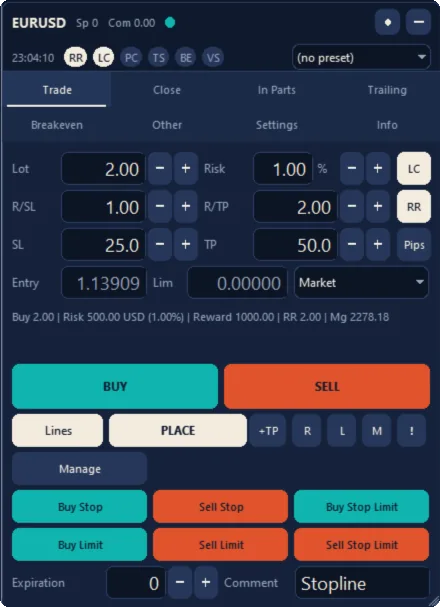
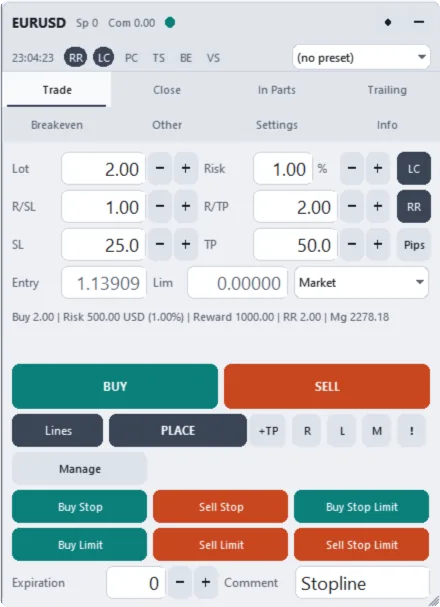
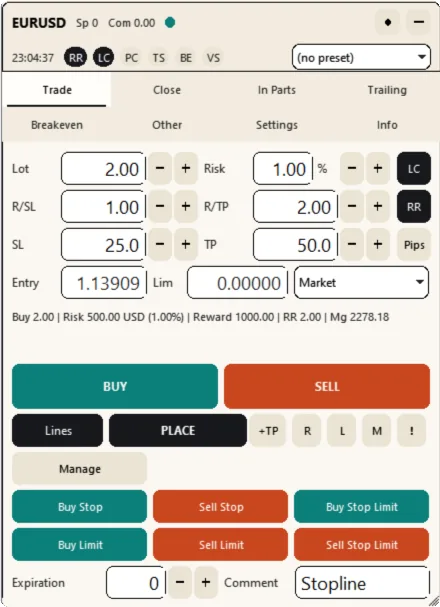
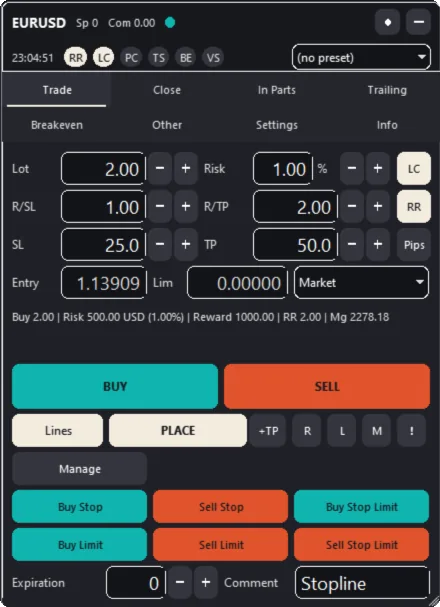
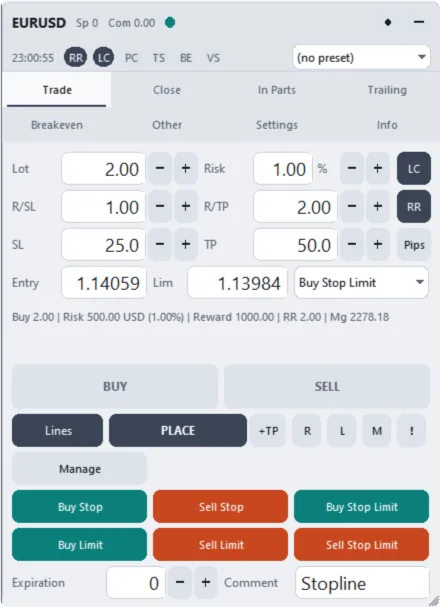
The screenshots show EURUSD on the H1 chart of a MetaQuotes demo account and the panel in each of its color themes. The theme does not change any function.
Note Stopline Trade Manager is software. It sizes and places the orders you set up and manages them by the rules you choose. It offers no trading account, holds no money and gives no advice, signals or promise of results: you decide every trade. Trading carries a risk of loss.
2 Installation
Stopline Trade Manager MT4 is sold and rented on the MQL5 Market only. The terminal downloads and installs a Market product by itself, so there are no files to copy.
2.1 Requirements
- MetaTrader 4, logged in to a trading account (demo or real, at any broker); on a Mac, MetaTrader 4 for macOS (Section 2.11).
- An MQL5.community account (free registration at mql5.com), which is needed to buy, rent and install products from the Market.
- AutoTrading allowed in the terminal (see Section 2.4).
2.2 Link Your MQL5 Account
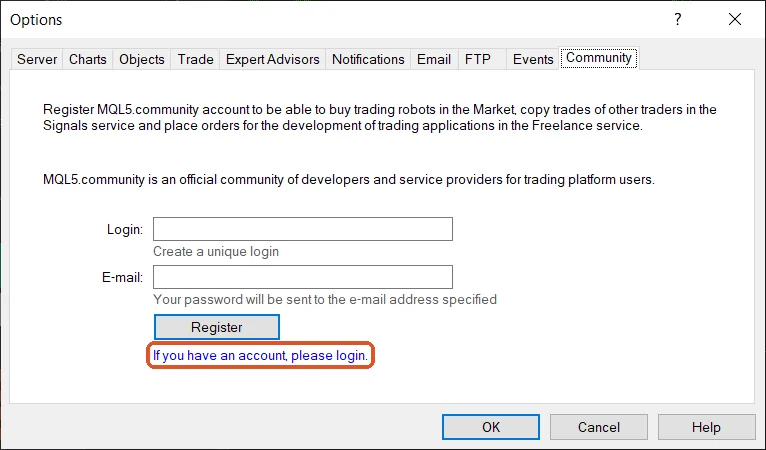
Open Tools › Options (Ctrl+O) and select the Community tab. The terminal uses this account to download what you buy or rent.
- If you already have an MQL5.community account, click If you have an account, please login (highlighted in the figure below), enter your login and password and press OK.
- Without an account, enter the login you want and your e-mail address and press Register. The password is sent to that e-mail address; enter it with your login as described above.
2.3 Buy or Rent the EA
You can buy or rent the EA in either of two places:
- In the terminal: open the Terminal window (Ctrl+T), select its Market tab, search for Stopline Trade Manager and press Buy or Rent.
- On the product page at mql5.com, logged in with the same MQL5.community account.
As soon as the payment is complete, the terminal downloads the EA into the folder
MQL4\Experts\Market\. Each purchase includes the number of activations shown on the
product page. An activation binds the EA to the computer on which it was installed (its
hardware and operating system), not to a trading account: on that computer you can use
the EA with any account at any broker.
2.4 Enable AutoTrading
An Expert Advisor can send orders only while AutoTrading is enabled. Press the AutoTrading button on the toolbar (or Ctrl+E); its icon is green while AutoTrading is on and red while it is off.

2.5 Find the EA in the Navigator
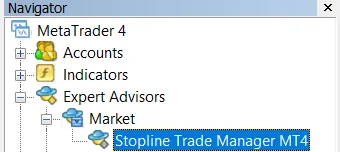
Open the Navigator (View › Navigator or Ctrl+N) and expand Expert Advisors › Market. The EA is listed as Stopline Trade Manager MT4.
2.6 Attach the EA to a Chart
Open a chart of the symbol you want to trade and drag Stopline Trade Manager MT4 from the Navigator onto the chart, or double-click it. The EA dialog opens. A chart runs one Expert Advisor at a time; open one chart per symbol, or see Manage all symbols in Section 12.3.
2.7 Review the EA Dialog
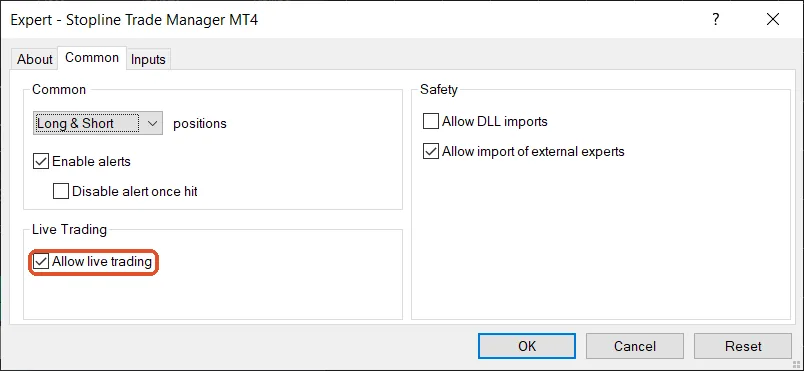
The dialog has three tabs: About, Common and Inputs. You can open it again at any time with F7 while the chart is active.
On the Common tab, tick Allow live trading and keep Long & Short in the positions list, so that the EA can trade in both directions. Without Allow live trading the EA runs and draws its panel and lines, but every order is refused and the health dot of the panel turns amber (see Section 4.1).
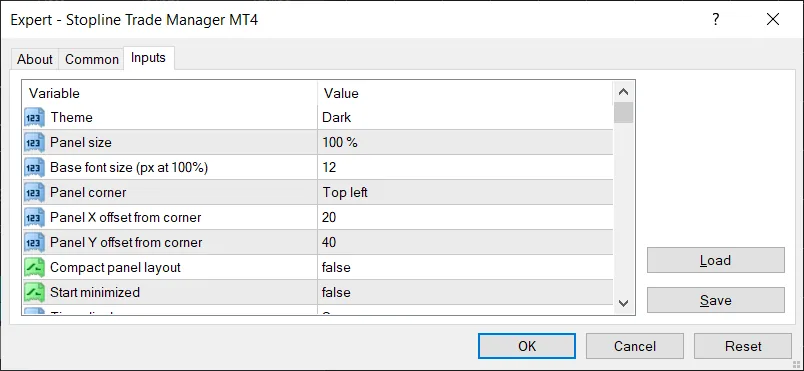
The Inputs tab lists the starting value of every setting. You rarely need to change them here: almost every setting can be changed later on the panel, and the panel remembers your changes per symbol (see Chapter 17). MetaTrader 4 shows the inputs as one list without group headings; Appendix A lists all of them in the same order, with the groups. Press OK to start the EA.
2.8 Check That the EA Is Running
The name of the EA appears in the top-right corner of the chart with a face, which smiles while AutoTrading and live trading are allowed and frowns while either is off, and the panel opens on the Trade tab.

2.9 Install on Another Computer
Link the same MQL5.community account on the other computer (Section 2.2), open the Market tab of the Terminal window, select Purchased and press Install next to the EA. Each installation on a new computer uses one activation. Reinstalling the operating system or changing the hardware also counts as a new computer.
2.10 Updates and Removal
Updates of a purchased product are free. When a new version is available, the Purchased section of the Market tab offers an Update button next to the EA. Your settings, presets and trade journal are kept, because the EA stores them in its data folder (see Chapter 22).
To remove the EA from a chart, right-click the chart, select Expert Advisors and then Remove. Attaching another Expert Advisor to the chart also replaces it.
2.11 On a Mac
MetaQuotes provides MetaTrader 4 for macOS (macOS 11 Big Sur or later, Intel and Apple silicon). Download the installer from metatrader4.com or from your broker and run it: it sets up everything the platform needs by itself. Agree when it asks to install additional packages (Wine, Mono, Gecko). The terminal is the same program as on any other computer, so every step of this chapter is the same. A few things differ:
- Keys: MetaTrader’s shortcuts use the Control key, not Command: Ctrl+E is Control
and E. The function keys usually need Fn, so the EA dialog opens with
Fn+F7, unless the macOS keyboard settings use F1, F2 and so on as standard function keys. - Right-click: click with two fingers on the trackpad, or hold Control and click.
- Data folder: in Finder, choose Go › Go to Folder and enter
~/Library/Application Support/net.metaquotes.wine.metatrader4/drive_c/Program Files/MetaTrader 4; the EA’s folders (Chapter 22) are inMQL4/Filesinside it. - Fonts: the panel is designed with Segoe UI, which a Mac does not have. The EA then uses Tahoma, which MetaTrader brings along (for Chinese and Japanese a Mac font such as PingFang or Hiragino), so the text looks slightly different; the Experts tab says so when the EA starts.
- Activations: each Mac counts as one computer (Section 2.9).
3 Quick Start: A Risk-Sized Trade in Under a Minute
This chapter places a market order with the default settings. The figure below shows the panel and its lines right after the EA starts.
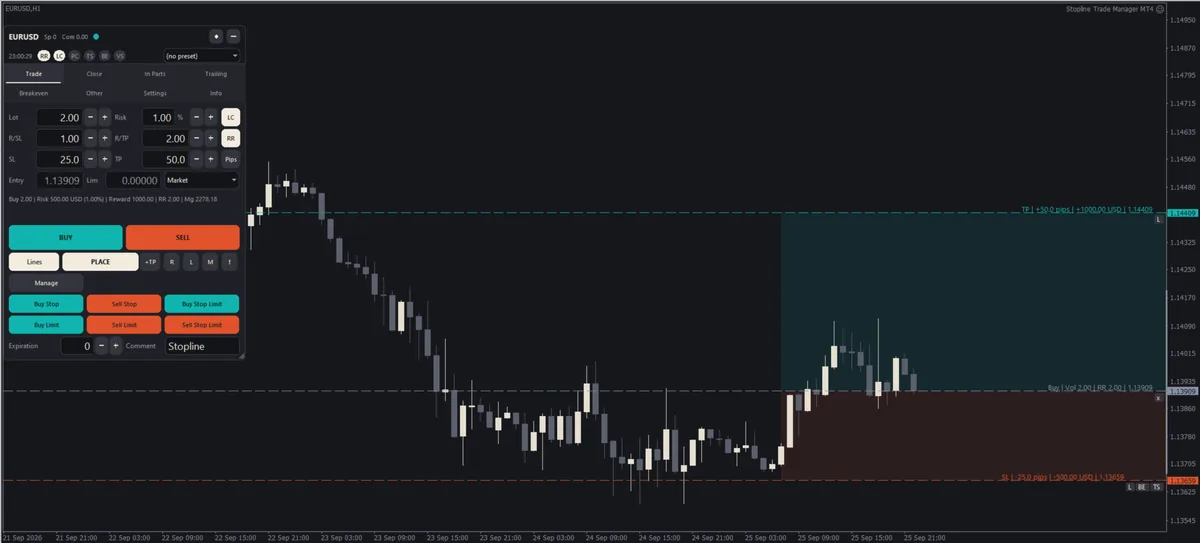
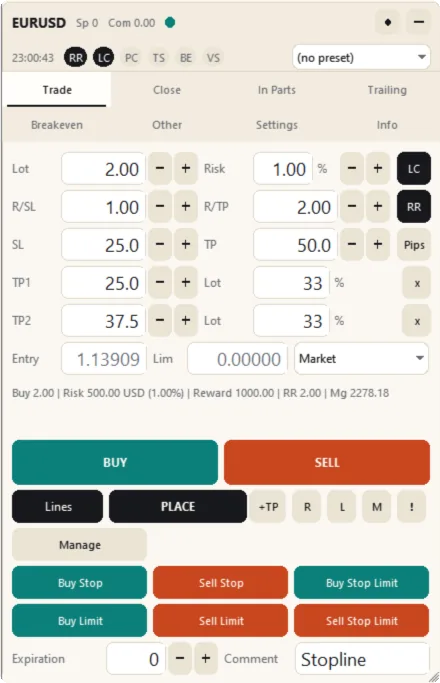
- Attach the EA. The panel opens on the Trade tab with LC (Lot Calc) on: the lot is calculated from the Risk field (1% of the balance by default) and the distance to the stop loss (SL). The entry line (blue-grey), the stop-loss line (orange) and the take-profit line (teal) are drawn on the chart. On a fresh start the SL and TP lines are placed at 15% and 30% of the visible price range, so they are easy to reach.
- Set the risk and the stop. Type a risk and a stop distance, or move the SL and TP lines on the chart: point at a line and drag the tab that appears (Section 6.1). The line labels and the summary line below the fields show the lot, the risk in money and in percent, the reward and the reward-to-risk ratio (RR).
- Press BUY or SELL. The lines show one direction. The button for the other direction first flips the lines (the stop loss and the take profit change sides); the next press sends the order. A confirmation lists every detail: Enter confirms, Esc cancels. To skip the confirmation, tick Don’t ask again or turn on One-click trading in the Settings tab.
- To place a pending order instead, drag the entry line away from the price (the order type follows automatically) or choose the type in the drop-down list, then press PLACE. While a pending type is selected, BUY and SELL are unavailable, so a market order cannot be sent by mistake. Set the type back to Market (or press M) to trade at market again.
- To take profit in steps, press +TP. A row with a distance, a share of the lot and a remove button (x) appears below the SL and TP fields, and a dotted TP1 line appears on the chart. Up to five levels are possible (see Section 5.4).
These five steps are all a trade needs. The following chapters describe the other tabs and the automatic functions: partial close, trailing stop, breakeven and virtual orders.
4 The Panel
4.1 Header
The header shows the state of the EA and gives access to the tabs.
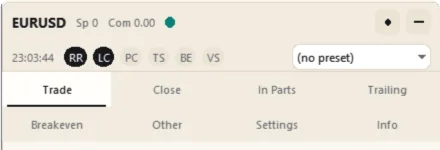
The first row shows the symbol, the spread in points (Sp), the commission per lot (Com) and the health dot:
- Teal: the EA is ready to trade.
- Amber: AutoTrading is off on the toolbar, or live trading is not allowed in the EA dialog, or the last trade request failed.
- Orange: the terminal has no connection to the trade server, or the daily loss limit has been reached.
The second row shows the clock (server time, local time, both, or GMT: the Time setting in the Settings tab), the function chips (Section 4.2) and the preset drop-down list, which loads a saved preset with one click. MetaTrader 4 advances the server time only with price ticks. While the market is closed, for example at the weekend, the server clock shows the time of the last tick plus the time that has passed since the EA started.
Two buttons sit at the right of the first row: the dot switches between the light and the dark theme, and the minus sign minimizes the panel to a toolbar (Section 4.5). With Symbol switch on (Settings tab), two arrows switch to the previous or next Market Watch symbol. Drag the first row to move the panel; the position is saved.
4.2 Function Chips
The chips light up for the functions that new positions will receive.
| Chip | Meaning |
|---|---|
| RR | Risk/reward link: the take profit follows the stop loss at the ratio R/TP : R/SL. |
| LC | Lot calculation: the lot is calculated from the risk and the stop distance. |
| PC | Partial close: new positions receive the levels of the In Parts tab. |
| TS | Trailing stop: new positions are trailed with the settings of the Trailing tab. |
| BE | Automatic breakeven: new positions move their stop to breakeven at the set level. |
| VS | Virtual stops or virtual pending orders: levels kept by the EA, not sent to the broker. |
4.3 Tooltips
Rest the mouse pointer on a button, switch or drop-down list for half a second and a
short hint explains it, abbreviations included, in the language of the panel. An
unavailable (greyed-out) control explains why it is unavailable. The Tooltips switch
in the Settings tab (input Inp_Panel_Tooltips) turns the hints off.

4.4 Size, Scrolling and Themes
Drag the grip in the bottom-right corner of the panel to resize it: the width rearranges every tab and the height sets a maximum. The panel never grows taller than the chart; when a tab does not fit, scroll it with the mouse wheel, the scroll bar at the right edge or Tab (Section 4.6). Drag the height past the content to return to “fit the content”. Scale (75%, 100%, 125% or 150%) and Font in the Settings tab change the size of every element; the panel also follows the display scaling of your screen.
There are four themes and a High contrast switch that works with each of them. Light (warm paper) and Dark (ink) use the colors of this manual; Slate (a cool light grey) and Midnight (navy) are their cool counterparts. Dark is the default. The colors mean the same thing in every theme, as in the Stopline logo: teal is buy, the take profit and profit; orange is sell, the stop loss and loss.
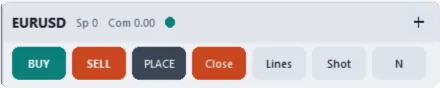
4.5 Minimized Toolbar
The minus button in the header (or M) reduces the panel to one row with the essential
buttons: BUY, SELL, PLACE, Close (every position of the symbol),
Lines, Shot (screenshot) and N (new order: show or hide the lines). The plus
button restores the full panel. The input Inp_Panel_StartMinimized starts the panel in
this form.
4.6 Keyboard Field Navigation
MetaTrader does not let an Expert Advisor give the keyboard focus to an input field, so the panel provides its own navigation: Tab highlights the next field (with an accent border), NumPlus and NumMinus change it by one step, exactly like its spin buttons, and Esc removes the highlight. Click a field to type into it; Enter applies the value. Hotkeys do not work while an input field has the keyboard focus.
5 Trade Tab
The Trade tab plans and sends an order. The plan is visible twice, in the fields and on the chart as lines, and both always show the same values.
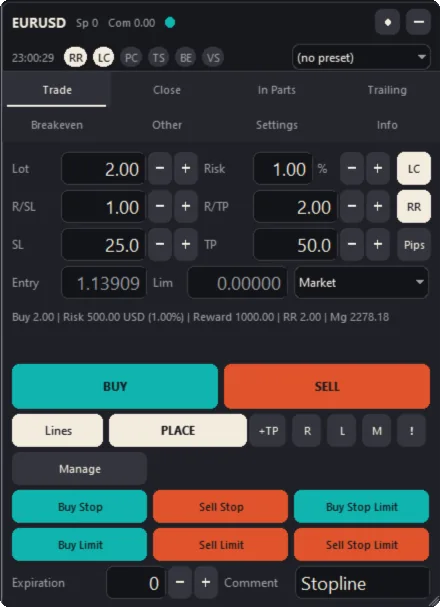
5.1 Controls
| Control | Description | Input | Hotkey |
|---|---|---|---|
| Lot | The lot of the next order. With LC on it is calculated from Risk and the stop distance; with LC off you type it. | Inp_Risk_FixedLot |
– |
| Risk | The risk per trade: a percentage of the risk base or an amount in the account currency (Risk mode in the Settings tab). The minus and plus buttons change it by Risk step. | Inp_Risk_Value, Inp_Risk_Step |
– |
| LC | Lot Calc on or off: the lot is calculated from Risk and the stop distance, or typed. | Inp_Risk_LotCalc |
K |
| R/SL, R/TP | The two sides of the reward-to-risk ratio. With RR on, the TP distance equals the SL distance × R/TP ÷ R/SL. | Inp_RR_SL, Inp_RR_TP |
– |
| RR | RR lock on or off. On: moving the SL line moves the TP line and the other way round, so the ratio holds. Off: the lines are independent and RR only reports the ratio. | Inp_RR_On |
R |
| SL, TP | Stop loss and take profit, as a distance in pips from the entry (Pips mode) or as a price (Price mode). A value of 0 at start places them automatically (15% and 30% of the visible range). | Inp_Lines_SLPips, Inp_Lines_TPPips |
Shift+L, Shift+T place the SL or TP at the mouse pointer |
| Pips / Price | Switches the SL and TP fields between a pip distance and a price. Moving a line switches to Price, so the line stays exactly where you release it. | Inp_Lines_Mode |
I |
| Entry | The entry price of a pending order. For a market order the field follows the market price and is unavailable. | Inp_Lines_AlwaysMarket |
Shift+P places it at the mouse pointer |
| Lim | The limit price of a stop-limit order. | – | – |
| Order type | Market, Buy Stop, Sell Stop, Buy Limit, Sell Limit, Buy Stop Limit or Sell Stop Limit. Moving the entry line away from the price selects the matching type. | – | T cycles the types |
| Summary line | Shows the direction, lot, risk in money and in percent, reward, RR and margin. | – | – |
| Warning line | Explains why the plan cannot be sent at the moment, for example because the risk is too small for the minimum lot, the spread is above the limit or the market is closed. | – | – |
| BUY, SELL | Send a market order with the lot and stops shown. The confirmation opens unless one-click trading is on. | Inp_Trade_OneClick |
B, S |
| Lines | Shows or hides the entry, SL and TP lines. The state is remembered. | Inp_Lines_ShowOnStart |
N |
| PLACE | Sends the pending order shown by the lines and the order type. | Inp_Panel_ShowButtonPlace |
Shift+Enter |
| +TP | Adds a take-profit level (up to five; Section 5.4). | – | – |
| R | Reverse: mirrors the plan (a buy becomes a sell; the SL and TP change sides). | Inp_Panel_ButtonRL |
Shift+R |
| L | Lock: the SL and TP keep their prices when the entry line moves. | Inp_Panel_ButtonRL |
L (the TP or SL alone: Inp_Key_LockTP, Inp_Key_LockSL, no default) |
| M | Magnet: returns the entry line to the market price. | – | G |
| ! | Places a price alert line a few pips above the market; move it to the level you want. | – | A places it at the mouse pointer; Shift+A removes all alerts |
| Manage | Switches the pending-order buttons to position management and lists the open positions (Section 5.5). | – | – |
| Buy Stop … Sell Stop Limit | Place that pending order directly at the entry line. A Buy Stop buys when the price rises to the line, a Buy Limit buys when the price falls to it, and a Buy Stop Limit places a buy limit at the Lim price when the stop price trades (the sell orders mirror these). | – | Shift+B, Shift+S, Shift+U, Shift+J, Ctrl+Shift+B, Ctrl+Shift+S |
| Expiration | Minutes until a pending order expires; 0 means good till cancelled. MetaTrader 4 servers usually refuse an expiration less than 10 minutes away, and some brokers accept no expiration at all. | – | – |
| Comment | The order comment. | Inp_Trade_Comment, Inp_Trade_ShowComment |
Shift+E edits it |
5.2 Pending and Stop-Limit Orders
Drag the entry line above or below the market and the order type follows: above the price a buy becomes a Buy Stop, below it a Buy Limit, and the sell orders mirror this. For a stop-limit order, choose the type in the drop-down list and set Lim; a dotted line shows the limit price. BUY and SELL remain unavailable while a pending type is selected; rest the pointer on them to read why.
MetaTrader 4 has no stop-limit orders, so the EA keeps a stop-limit order itself and places the limit order when the stop price trades. Until then the order does not appear in the Trade tab of the Terminal window. The EA saves it and keeps it after a restart, but like a virtual order (Section 11.1) it can only be placed while the terminal is running and connected.
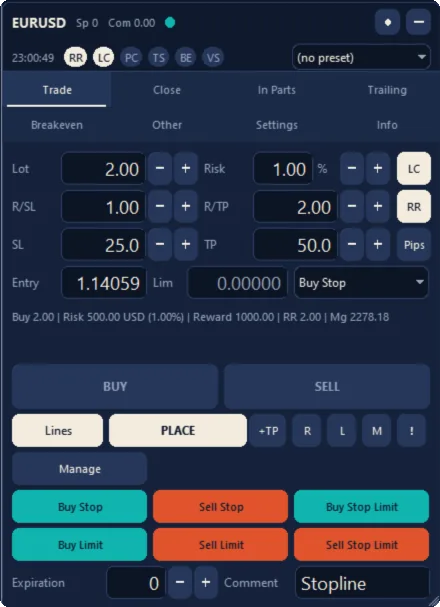
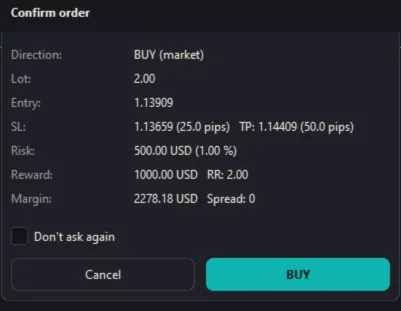
5.3 Order Confirmation
Before a market order is sent, the confirmation lists the direction, lot, entry, stop
loss and take profit (as prices and in pips), the risk and reward in money, the RR, the
margin and the spread. Enter or BUY / SELL sends the order; Esc or Cancel
cancels it. Don’t ask again turns on one-click trading; the One-click trading
switch in the Settings tab turns it off again. Confirm close in the Settings
tab (input Inp_Trade_ConfirmClose) asks before positions are closed.
5.4 Take-Profit Levels
+TP adds a row with a distance (or a price in Price mode), a share of the lot and a remove button (x) below the SL and TP fields, and a dotted TP1 line on the chart. Type the distance or move the line; the share says how much of the position closes at that level, and whatever remains runs to the final take profit. Press +TP again for TP2, TP3 and so on, up to five levels. The levels are kept in order, the nearest first.
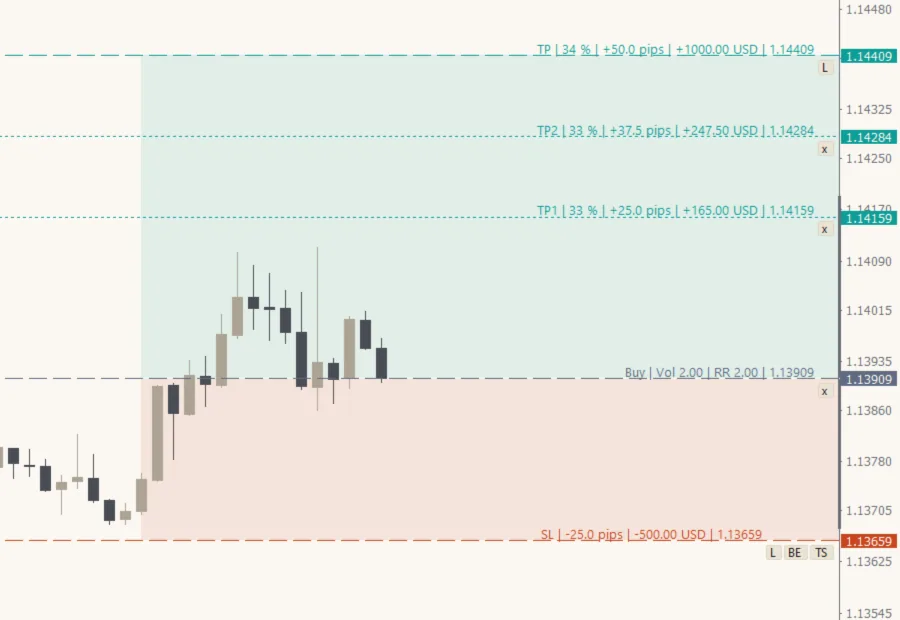
A position keeps the levels it was opened with. They are drawn as dotted TP1 #ticket
lines that you can move per position, and changing the panel later never changes a
running trade. Pending and virtual pending orders keep their levels until they are
filled. A position with its own take-profit levels uses them instead of the levels of
the In Parts tab.
5.5 Manage Mode: Acting on Selected Positions
Manage replaces the pending-order buttons with position management buttons and lists the open positions of the chart symbol, each with a tick box, its ticket, side, lot, entry price and live profit or loss. Up to ten positions are listed; with more open, a line below the list says how many more there are, and you select those on the chart.
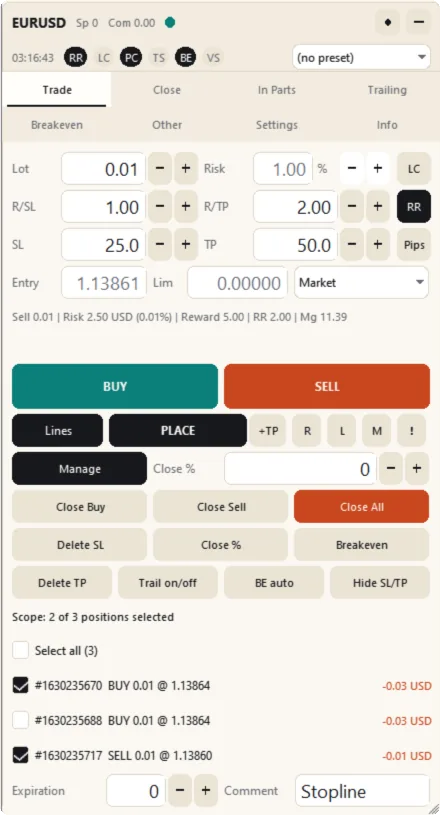
The buttons act on the ticked positions. With nothing ticked they act on every position of the chart symbol. Select all ticks every listed position. A scope line above the list states what the buttons will act on, for example Scope: 2 of 5 positions selected.
| Control | Description | Hotkey |
|---|---|---|
| Close Buy, Close Sell | Close the buy or the sell positions within the scope. | – |
| Close All | Closes every position within the scope. | Shift+C |
| Delete SL, Delete TP | Remove the stop loss or the take profit of the positions within the scope. | – |
| Close % and its field | Closes the percentage in the field of every position within the scope. | C; 1 … 9 close 10% … 90% |
| Breakeven | Moves the stop loss of the positions within the scope to breakeven now. | E |
| Trail on/off | Turns the trailing stop on or off for the positions within the scope: on if any of them has it off. | – |
| BE auto | Turns automatic breakeven on or off in the same way. | – |
| Hide SL/TP | Turns the real stop loss and take profit into hidden ones kept by the EA, or restores them (Section 11.1). | – |
| Select all | Ticks every listed position. | – |
| Tick box of a position | Adds the position to the selection or removes it. | – |
You can also select a position on the chart: Ctrl+click its position label (the label
turns to the accent color and shows [x]), or choose Select for the Manage buttons
in its position menu (Section 6.3). Both methods change the same selection as the tick
boxes. The selection is not saved; it only applies to the next actions.
The selection applies to these actions wherever you start them: the matching buttons of the Close tab (Close Buy, Close Sell, Close All, Close Profit, Close Loss and Close %), Breakeven now on the Breakeven tab, and their hotkeys. In the Apply to list of the In Parts, Trailing, Breakeven and Settings tabs, Selected position uses the ticked positions.
6 Chart Objects
The EA draws its lines, labels and buttons on the chart. This chapter explains how to move them and what each one means.
6.1 Moving a Line
Point at the line you want to move. As soon as the pointer is close to it, a small tab in the line’s color appears under the pointer with the line’s name (Entry, SL, TP, TP2, P1, Alert and so on), and the line is drawn thicker, so you can see which line you are about to take even on a busy chart. Press on the tab and drag it: the line follows the pointer and the tab shows the price, for a stop loss or take profit also the distance from the entry in pips. While you drag the entry, stop-loss or take-profit line, the lot, the risk and the reward on the panel and the line labels follow the pointer. Release the mouse button to place the line.
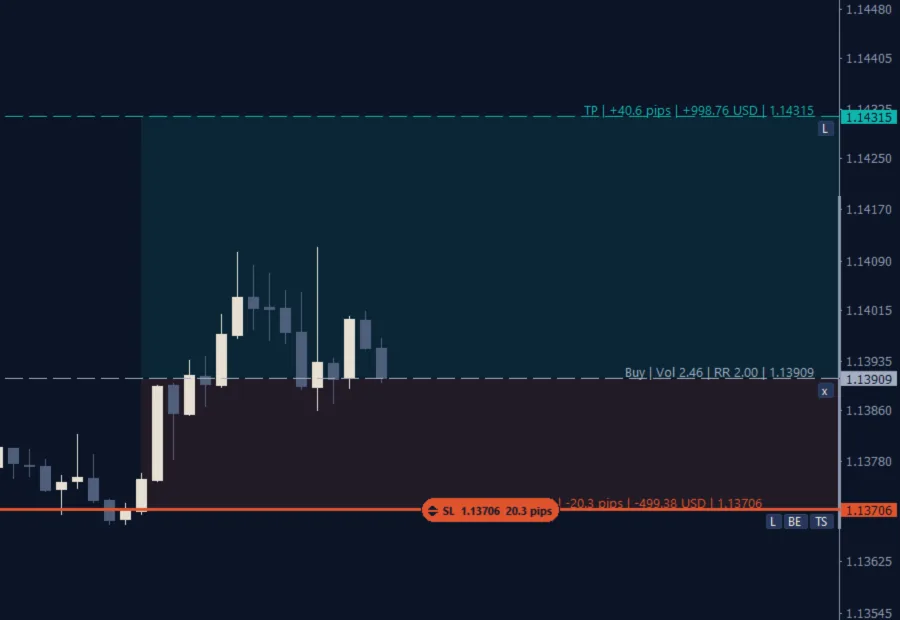
This works for every line the EA draws for you to move: the entry, stop loss and take profit, the take-profit levels, the partial-close levels, the take-profit levels of a position, hidden stops, virtual orders, the automatic cancellation line and alert lines. The lines of open positions, virtual orders and alerts take their new price when you release the button.
If a line cannot go where you release it, for example a stop loss above the entry of a buy, it returns to where it was and a message explains why. For the stop loss and the take profit the tab already turns into an orange outline while the pointer is at such a price.
The tab does not appear over the panel, over a position label or over the small buttons
at the right end of a line, so they stay easy to click. A press on the tab of the entry,
stop-loss or take-profit line without moving it selects that line for the keys described
below. The input Inp_Lines_Grips turns the tab off.
The usual MetaTrader method works as well: double-click a line to select it (small square markers appear), drag it, and double-click it again to deselect it. If you prefer a single click, turn on Select object by single mouse click in Tools › Options › Objects; the terminal then selects every object with one click.
You can also move a line without the mouse: Q selects the next line of the plan, Shift+Up and Shift+Down move it by one step, and Shift+L, Shift+T and Shift+P place the stop loss, the take profit or the entry at the mouse pointer. The small buttons on the lines (L, x, BE, TS) and the position labels react to a single click.
6.2 The Planning Lines
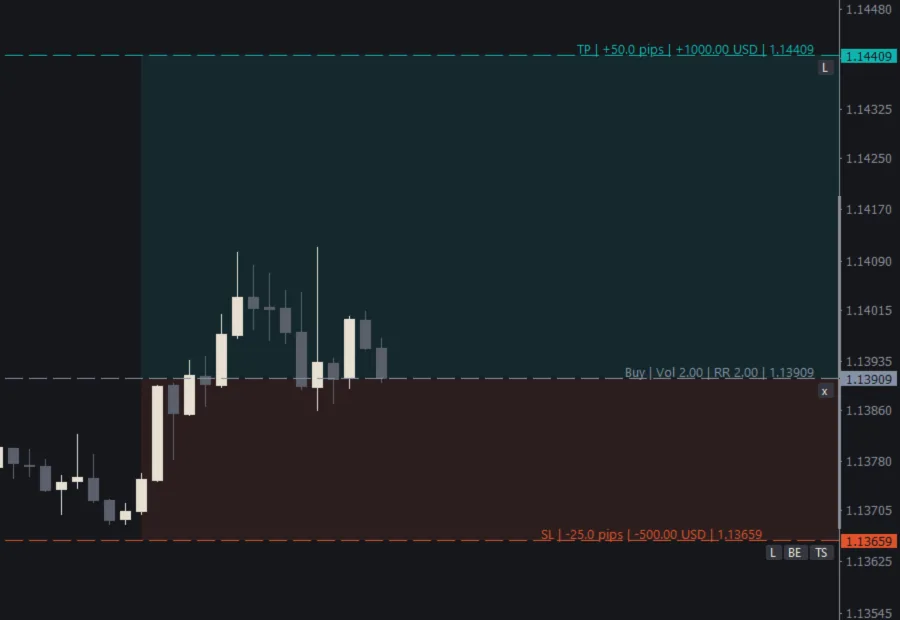
- Entry (blue-grey), SL (orange) and TP (teal), with shaded zones between them (input
Inp_Lines_RangeShow; further inputs draw the zones across the full chart width or behind the price). - The labels show what the Label inputs select: the direction, volume, price, pips,
profit or loss in money and in percent, RR, net RR, spread, commission and margin. The
input
Inp_Lines_FontSizesets their size. - A line stays exactly where you release it, and the panel follows.
- RR lock (the RR button on): moving the SL line moves the TP line and the other way round, so the ratio holds. A locked line (L) keeps its price and the ratio follows instead. With RR off the lines are independent.
- Magnet (M or G) returns the entry line to the market price. With Entry line
follows the market price on (the default,
Inp_Lines_AlwaysMarket) it stays there. - Moving the entry line away from the market turns the plan into the matching pending order type.
- Buttons on the lines: L on the TP line locks the take profit and L on the SL line locks the stop loss; x on the entry line hides the lines; BE and TS on the SL line turn automatic breakeven and trailing on or off for the next position.
6.3 Position Labels and the Position Menu
Each open position of the chart symbol has a label on its entry line, for example
#ticket BUY 0.10 +12.30 USD. Click the label to open the position menu; Ctrl+click it to
select or deselect the position for the Manage buttons (Section 5.5).
After a partial close, MetaTrader 4 gives the remaining volume a new ticket (Chapter 19).
The label keeps the position’s first ticket; the terminal’s Trade tab shows the new one.
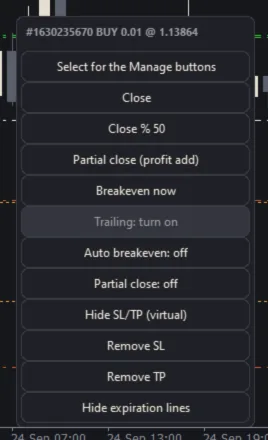
| Menu Item | Description |
|---|---|
| Select for the Manage buttons / Deselect | Adds the position to the Manage selection or removes it. |
| Close | Closes the position. |
| Close % 50 | Closes half of the position’s current volume. |
| Partial close (profit add) | Closes 50% of the initial lot, plus Profit% add when the position is in profit or Loss% add when it is in loss (In Parts tab). |
| Breakeven now | Moves the stop loss to breakeven now. |
| Trailing: turn on / turn off | Turns the trailing stop on or off for this position. |
| Auto breakeven: on / off | Turns automatic breakeven on or off for this position. |
| Partial close: on / off | Turns the partial-close levels of the In Parts tab on or off for this position. |
| Hide SL/TP (virtual) / Restore real SL/TP | Turns the stops into hidden ones kept by the EA, or sends them back to the broker. |
| Remove SL, Remove TP | Deletes the stop loss or the take profit. |
| Hide expiration lines / Show expiration lines | Hides or shows the expiration markers of pending orders. |
6.4 Other Objects
- Partial-close level lines of each position (movable) and the breakeven activation line.
- Virtual SL and TP lines (
vSL #ticket,vTP #ticket) of hidden stops (movable). - Virtual pending orders: movable lines; x deletes one.
- The automatic cancellation level and the stop-out line (input
Inp_Lines_StopOut). - Expiration markers of pending orders: vertical dotted lines at the expiry time.
- Alert lines (amber, dashed): see Chapter 14.
The EA only deletes its own objects (their names start with TA<chart id>_); lines that
you draw yourself are never touched.
7 Close Tab
The Close tab closes positions and deletes pending orders in groups. When positions are ticked in Manage mode (Section 5.5), Close Buy, Close Sell, Close All, Close Profit, Close Loss and Close % act on the ticked positions only.
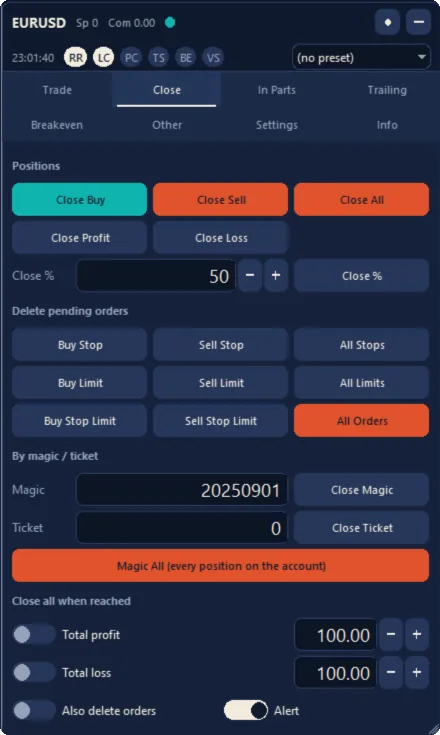
| Control | Description | Input | Hotkey |
|---|---|---|---|
| Close Buy, Close Sell, Close All | Close every buy position, every sell position or every position of the chart symbol (of every symbol with Manage all symbols). | – | Shift+C (Close All) |
| Close Profit, Close Loss | Close only the positions that are currently in profit or in loss. | – | – |
| Close % and its field | Closes this percentage of every position. | – | C; 1 … 9 |
| Buy Stop … All Orders | Delete the pending orders of one type, all stop orders, all limit orders or every pending order. | – | X (all orders), Shift+X (limit orders), Ctrl+Shift+X (stop orders) |
| Magic and Close Magic | Close the positions with this magic number. | – | – |
| Ticket and Close Ticket | Close the position with this ticket. | – | – |
| Magic All | Closes every position of every magic number on the account, after a confirmation. | – | – |
| Total profit and its amount | Closes everything when the total floating profit reaches the amount. | Inp_Other_CloseAtProfitOn, Inp_Other_CloseAtProfit |
– |
| Total loss and its amount | Closes everything when the total floating loss reaches the amount (entered as a positive number). | Inp_Other_CloseAtLossOn, Inp_Other_CloseAtLoss |
– |
| Also delete orders | Also deletes the pending orders when a target is reached. | Inp_Other_CloseAtDeleteOrders |
– |
| Alert | Raises an alert when a target is reached. | Inp_Other_CloseAtAlert |
– |
The totals are the floating result, in the account currency, of the positions the EA manages: those with its magic number and, unless Manage all symbols is on, of the chart symbol.
8 In Parts Tab
The In Parts tab splits new orders into several positions and closes positions in steps.
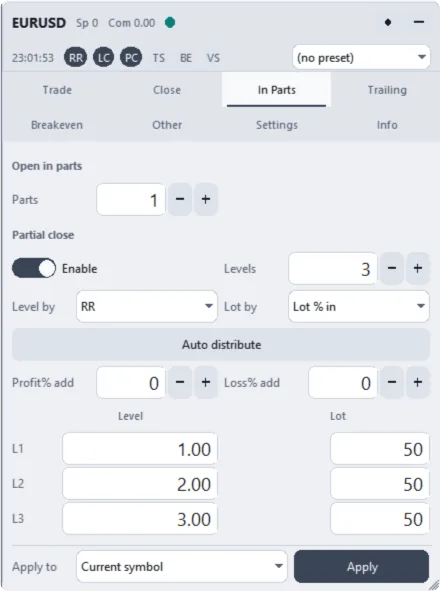
8.1 Open in Parts
Parts splits the next order into that number of orders of equal size, rounded to the volume step; the remainder goes to the last part. Each part becomes a separate position that you can manage on its own.
8.2 Partial Close
With Enable on, new positions close parts of their volume at up to ten levels.
| Control | Description | Input |
|---|---|---|
| Enable | Turns partial close on for new positions (chip PC). | Inp_PC_On |
| Levels | The number of levels, from 1 to 10. | Inp_PC_Count |
| Level by | How the levels are measured (Section 8.3). | Inp_PC_LevelMethod |
| Lot by | How the lot to close at each level is measured (Section 8.4). | Inp_PC_LotMethod |
| L1 … L10: level and lot | The value of each level and its lot. | Inp_PC_Level1 … Inp_PC_Level3, Inp_PC_Lot1 … Inp_PC_Lot3 (further levels on the panel) |
| Auto distribute | Spreads the levels evenly between the entry and the take profit, in the current Level by units, with equal lots. | – |
| Profit% add, Loss% add | The extra percentage of the initial lot that Partial close (profit add) in the position menu closes when the position is in profit or in loss. | Inp_PC_ProfitAdd, Inp_PC_LossAdd |
| Apply to and Apply | Apply these settings to positions that are already open: those of the current symbol, all positions or the selected ones. | – |
A level is reached when the price at which a close would be executed (Bid for a buy, Ask for a sell) reaches it. Each level closes once per position, also after a restart, and at most one level closes per position at a time. Negative values place a level on the loss side. The levels are always calculated from the current settings and the current take profit of the position, so a change on this tab, or a moved take profit, applies to the levels that have not been reached yet.
MetaTrader 4 gives the remaining volume a new ticket after each partial close; the EA follows the position to its new ticket (Chapter 19).
8.3 Level Methods: Worked Examples
Example: a buy of 1.00 lot at 1.10000 with a stop loss at 1.09800 (a risk of 200 points, 20 pips) and a take profit at 1.10600, with three levels.
| Level Method | Typed Values | Level Prices |
|---|---|---|
| Auto: evenly between the entry and the TP, at 1/(n+1), 2/(n+1) … of the distance | – | 1.10150, 1.10300, 1.10450 |
| Prices: absolute prices | 1.10200, 1.10400, 1.10500 | 1.10200, 1.10400, 1.10500 |
| Points from the entry | 200, 400, 500 | 1.10200, 1.10400, 1.10500 |
| RR: multiples of the initial risk (200 points) | 1, 2, 2.5 | 1.10200, 1.10400, 1.10500 |
| Change %: price change from the entry | 0.1, 0.2, 0.3 | 1.10110, 1.10220, 1.10330 |
| % TP / SL: share of the distance to the TP (positive) or to the SL (negative) | 25, 50, 75 | 1.10150, 1.10300, 1.10450 |
| % TP / SL with a level on the loss side | 25, 50, −50 | 1.10150, 1.10300, 1.09900 |
8.4 Lot Methods: Worked Examples
The same position (1.00 lot, volume step 0.01) with the lot values 30, 30 and 40:
| Lot Method | Level 1 | Level 2 | Level 3 | Remaining |
|---|---|---|---|---|
| Lot % in: percentage of the initial lot | 0.30 | 0.30 | 0.40 | 0.00 |
| Lot %: percentage of the current lot | 0.30 (of 1.00) | 0.21 (of 0.70) | 0.19 (40% of 0.49 = 0.196, rounded down) | 0.30 |
| Lot: absolute lots (typed 0.30, 0.30, 0.40) | 0.30 | 0.30 | 0.40 | 0.00 |
Lots are rounded down to the volume step and never exceed the remaining volume.
9 Trailing Tab
A trailing stop moves the stop loss behind the price as the trade moves in your favor.
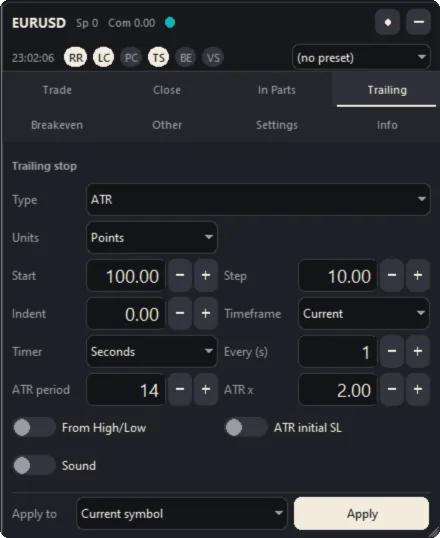
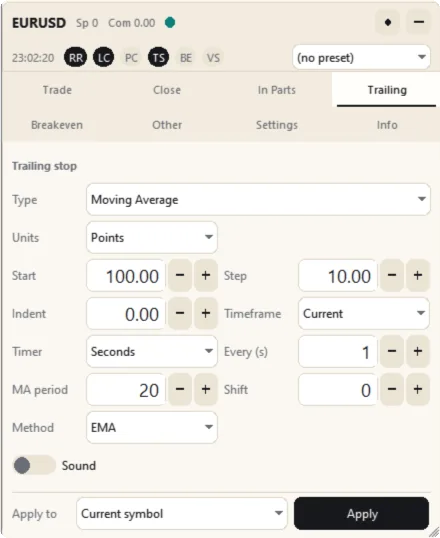
9.1 How Trailing Works
Every type calculates a reference level, subtracts the Indent (for a buy; for a sell it is added) and moves the stop loss there. Three rules apply to every type:
- Trailing starts only after the position has gained the Start distance, measured at the Bid price.
- The stop loss only moves forward, never back.
- The stop loss moves only when the new level is at least one Step better than the current one.
9.2 Controls
| Control | Description | Input |
|---|---|---|
| Type | Off, Pips (a fixed distance), Fractals, Moving Average, Parabolic SAR, ATR, Partial Close, or High/Low of the previous bar. | Inp_TS_Type |
| Units | The units of Distance, Start, Step and Indent: points, RR (multiples of the initial risk), percentage of the price, or percentage of the TP distance. | Inp_TS_ParamMode |
| Distance | The trailing distance of the Pips type. | Inp_TS_Distance |
| Start | The profit needed before trailing begins; 0 starts at once. | Inp_TS_Start |
| Step | The smallest move worth a modification. | Inp_TS_Step |
| Indent | Additional distance between the reference level and the stop loss. | Inp_TS_Indent |
| Timer and Every (s) | Trail every N seconds, or once per new bar. | Inp_TS_TimerMode, Inp_TS_TimerSec |
| Timeframe | The timeframe of the indicator types. | Inp_TS_Timeframe |
| MA period, Shift, Method | The moving average settings (simple or exponential, of the close). | Inp_TS_MAPeriod, Inp_TS_MAShift, Inp_TS_MAMethod |
| SAR step, SAR max | The Parabolic SAR settings. | Inp_TS_SARStep, Inp_TS_SARMax |
| ATR period, ATR x | The ATR period and multiplier. | Inp_TS_ATRPeriod, Inp_TS_ATRMult |
| Bars | How far back the Fractals type looks. | – |
| From High/Low | Measures the ATR distance from the previous bar’s high or low instead of the price. | Inp_TS_ATRHighLow |
| ATR initial SL | Gives a new position without a stop loss an initial stop at ATR × multiplier. | Inp_TS_ATRInitialSL |
| Sound | Plays a sound when a stop loss is moved. | Inp_TS_Sound |
| Apply to and Apply | Apply the trailing settings to open positions. | – |
9.3 The Seven Trailing Types
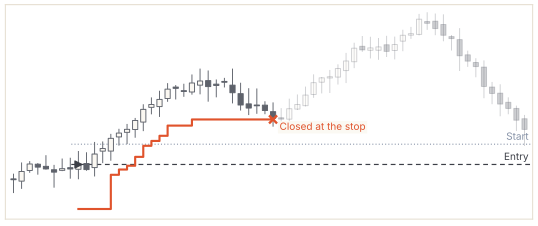
The diagrams below use one synthetic price path (an illustration, not market data) and a buy position with its initial stop loss below the entry. The orange line is the stop loss and the teal line or markers show the reference level. Each trade ends where the price touches the trailed stop loss.

Pips (fixed distance). The stop loss follows the price at a fixed distance. This type is simple and predictable; choose a distance larger than the usual pullbacks of the symbol.
Fractals. The stop loss moves to the last completed fractal below the price (above it for a sell). A fractal is complete once two bars have closed to its right, so the stop loss steps from one swing low to the next.
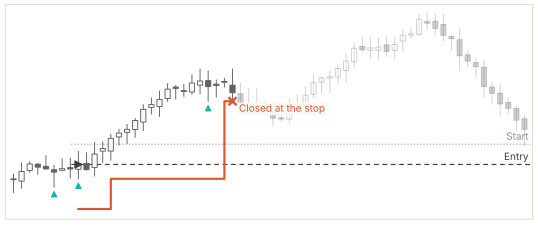
Moving Average. The stop loss follows the moving average of the last closed bar, as long as the average is below the price (above it for a sell).
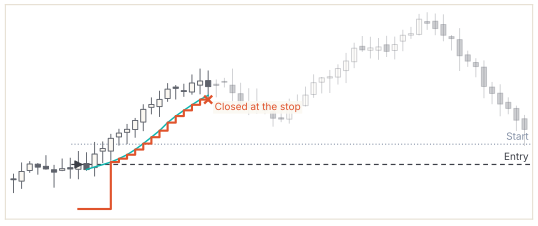
Parabolic SAR. The stop loss follows the SAR value of the last closed bar while it is on the correct side of the price.
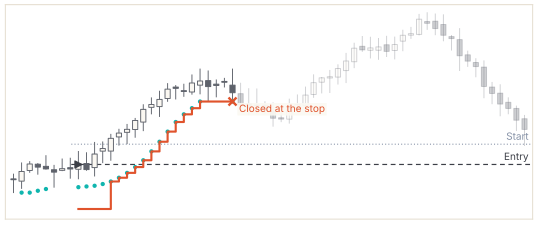
ATR. The stop loss stays ATR × multiplier below the price (or below the previous bar’s high with From High/Low), so it widens in fast markets and tightens in quiet ones.
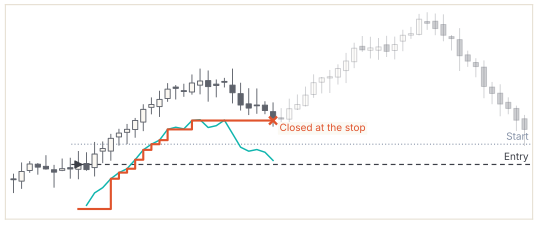
Partial Close. After each partial close the stop loss moves to the price of that close, so every closed part secures the next part of the move. The type does nothing until the first partial close.
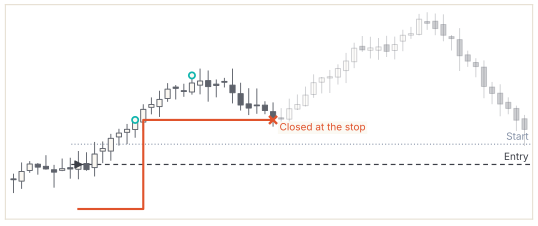
High/Low of the previous bar. The stop loss follows the low of the previous bar (the high for a sell). This is the tightest type and suits strong, fast moves.
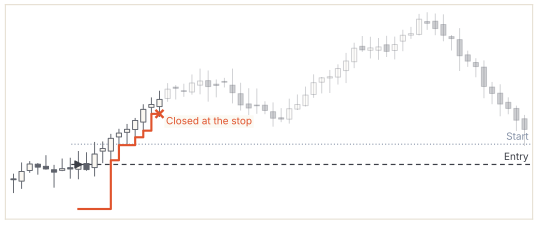
The indicator types (Fractals, Moving Average, Parabolic SAR, ATR and High/Low) read the chart’s own price data, so with Manage all symbols they trail only the chart symbol; Pips and Partial Close trail every symbol.
10 Breakeven Tab
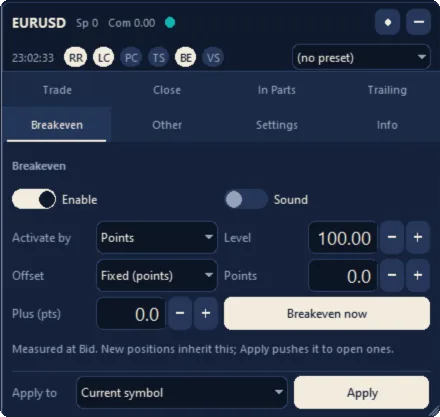
Breakeven moves the stop loss to the entry price, plus an offset, once the trade has moved far enough in your favor. It never moves a stop loss backwards.
10.1 Controls
| Control | Description | Input | Hotkey |
|---|---|---|---|
| Enable | Turns automatic breakeven on for new positions (chip BE). | Inp_BE_On |
– |
| Activate by and Level | How far the price must move from the entry, measured at the Bid price (Section 10.2). | Inp_BE_Mode, Inp_BE_Level |
– |
| Offset and Points | Where the stop loss goes: the entry plus a fixed number of points, or the entry plus the spread and the commission (Section 10.3). | Inp_BE_OffsetMode, Inp_BE_Offset |
– |
| Plus (pts) | Additional points of profit on top of the offset. | Inp_BE_PlusProfit |
– |
| Sound | Plays a sound when a stop loss is moved. | Inp_BE_Sound |
– |
| Breakeven now | Moves the stop loss to breakeven now: of the selected positions (Section 5.5), or of every position of the symbol when none is selected. | – | E |
| Apply to and Apply | Apply these settings to open positions. | – | – |
10.2 Activation Modes: Worked Examples
Example: a buy at 1.10000 with a stop loss at 1.09800 (a risk of 200 points) and a take profit at 1.10600.
| Activation Mode | Level | Breakeven Activates When the Bid Reaches |
|---|---|---|
| Points | 100 | 1.10100 |
| RR: multiples of the initial risk | 1.0 | 1.10200 |
| Change %: price change from the entry | 0.1 | 1.10110 |
| % of the TP distance | 50 | 1.10300 |
10.3 Offset Modes
| Offset Mode | Setting | New Stop Loss |
|---|---|---|
| Fixed (points) | 20 points, Plus 10 | 1.10030 |
| Spread + commission | Spread 12 points, commission worth 7 points, Plus 0 | 1.10019 |
Spread + commission covers the cost of the trade, so a position closed at breakeven ends close to zero instead of slightly negative.
11 Other Tab
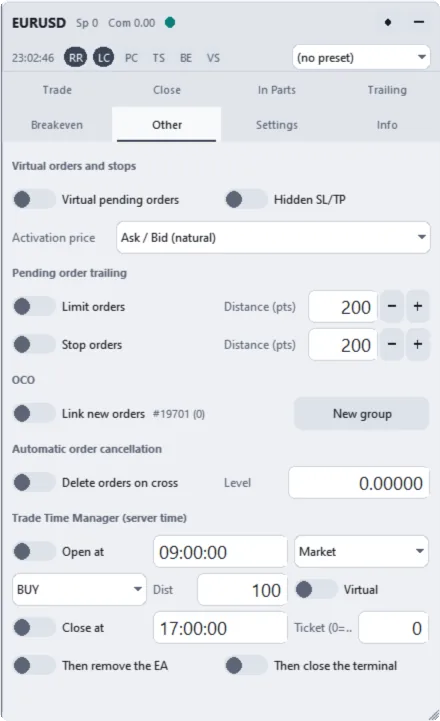
The Other tab holds virtual orders and hidden stops, pending-order trailing, OCO, automatic order cancellation and the trade time manager.
11.1 Virtual Pending Orders and Hidden Stops
| Control | Description | Input |
|---|---|---|
| Virtual pending orders | Pending orders are kept by the EA on this computer instead of being sent to the broker; when the price reaches the level, the EA sends a market order. | Inp_VO_VirtualPending |
| Hidden SL/TP | New positions receive hidden stops: the EA keeps them and the broker sees no stop loss or take profit; the EA closes the position when a level is reached. | Inp_VO_HiddenSLTP |
| Activation price | The price that triggers virtual orders and hidden stops: Ask / Bid (natural), Ask, Bid, Mid or the bar close. | Inp_VO_Activation |
Virtual orders appear as movable lines and hidden stops as vSL #ticket and vTP #ticket
lines. Drag a hidden stop’s line to move that position’s stop. A hidden stop cannot be
placed where the activation price has already reached it, because the EA would close the
position at once: the line returns and a message explains why. A single position can be
switched with Hide SL/TP (virtual) and Restore real SL/TP in its position menu. Virtual orders pass the same checks as a button press:
a daily loss limit, a spread limit or a closed session holds the order, with a notice,
until the block clears.
Important Virtual orders and hidden stops exist only inside the EA. They work only while the terminal is running and connected and the EA is attached. If the computer sleeps, the connection drops or the terminal is closed, a virtual order does not fire and a hidden stop does not close the position, and the broker holds no stop for it. The EA saves them and resumes after a restart, but it cannot act while it is not running. If you rely on them, run the terminal on a virtual private server (VPS).
11.2 Pending Order Trailing
| Control | Description | Input |
|---|---|---|
| Limit orders and Distance (pts) | Keep pending limit orders at this distance from the market: a buy limit follows a rising market upwards, and a sell limit mirrors this. | Inp_OCO_LimitTrailOn, Inp_OCO_LimitTrailDist |
| Stop orders and Distance (pts) | Keep pending stop orders at this distance: a buy stop follows a falling market downwards, and a sell stop mirrors this. | Inp_OCO_StopTrailOn, Inp_OCO_StopTrailDist |
Orders never move in the other direction, and their stop loss and take profit keep their distance to the order.
11.3 OCO (One Cancels the Other)
Link new orders (input Inp_OCO_On) puts the pending orders you place into one group:
when one of them is filled, the others are deleted. New group starts a new group for
the next orders; the label next to it shows the current group. A typical use is a Buy
Stop above and a Sell Stop below a range, to trade a breakout in either direction.
11.4 Automatic Order Cancellation
Delete orders on cross and Level (inputs Inp_VO_AutoCancelOn,
Inp_VO_AutoCancelLevel) delete every pending order when the price crosses this level,
for example when a setup is no longer valid. Once it has deleted orders the switch turns
itself off; a crossing while no pending order exists leaves it on, so the level can be set
before the orders are placed.
11.5 Trade Time Manager
All times are server times, as shown by the terminal’s Market Watch.
| Control | Description | Input |
|---|---|---|
| Open at and its time | Opens an order at the scheduled time. | Inp_TM_OpenOn, Inp_TM_OpenTime |
| Order type | Market or a pending order type. | Inp_TM_OpenKind |
| BUY / SELL | The direction of the scheduled order. | Inp_TM_OpenBuy |
| Dist | The distance of a pending order from the market, in points. | Inp_TM_OpenDistance |
| Virtual | Opens the order as a virtual pending order. | Inp_TM_OpenVirtual |
| – | How many times the EA checks that the order has opened (input only). | Inp_TM_OpenRetries |
| Close at and its time | Closes at the scheduled time. | Inp_TM_CloseOn, Inp_TM_CloseTime |
| Ticket (0=all) | The position to close; 0 closes all. | Inp_TM_CloseTicket |
| Then remove the EA, Then close the terminal | What happens after the scheduled close. | Inp_TM_CloseEA, Inp_TM_CloseTerminal |
The scheduled order uses the lot and stops of the Trade tab. Like virtual orders, the time manager needs the terminal to be running at the scheduled time.
12 Settings Tab
The Settings tab holds the panel appearance, the risk calculation and the trade execution options, and it saves and loads presets.
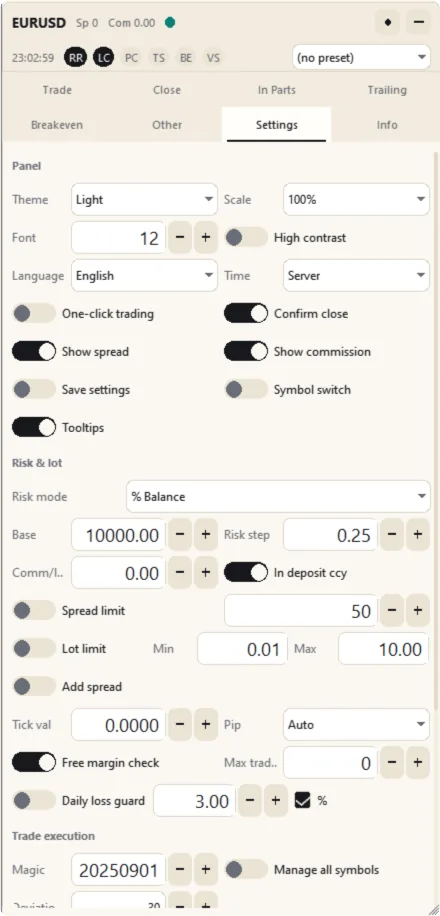
12.1 Panel
| Control | Description | Input |
|---|---|---|
| Theme | Light, Dark, Midnight or Slate. | Inp_Panel_Theme |
| Scale | The panel size: 75%, 100%, 125% or 150%. | Inp_Panel_Scale |
| Font | The base font size. | Inp_Panel_FontSize |
| High contrast | Stronger text and borders. | Inp_Panel_HighContrast |
| Language | English, Russian, German, French, Spanish, Chinese, Portuguese, Japanese or Italian. | Inp_Panel_Language |
| Time | The header clock: server time, local time, both, or GMT. | Inp_Panel_TimeDisplay |
| One-click trading | Sends market orders without the confirmation. | Inp_Trade_OneClick |
| Confirm close | Asks before positions are closed. | Inp_Trade_ConfirmClose |
| Show spread, Show commission | Show the spread and the commission in the header. | Inp_Panel_ShowSpread, Inp_Panel_ShowCommission |
| Save settings | Remembers the panel and symbol settings across restarts. | Inp_Sys_SaveSettings |
| Symbol switch | Shows the previous and next symbol buttons in the header. | Inp_Panel_SymbolSwitch |
| Tooltips | Shows the hover hints. | Inp_Panel_Tooltips |
12.2 Risk and Lot
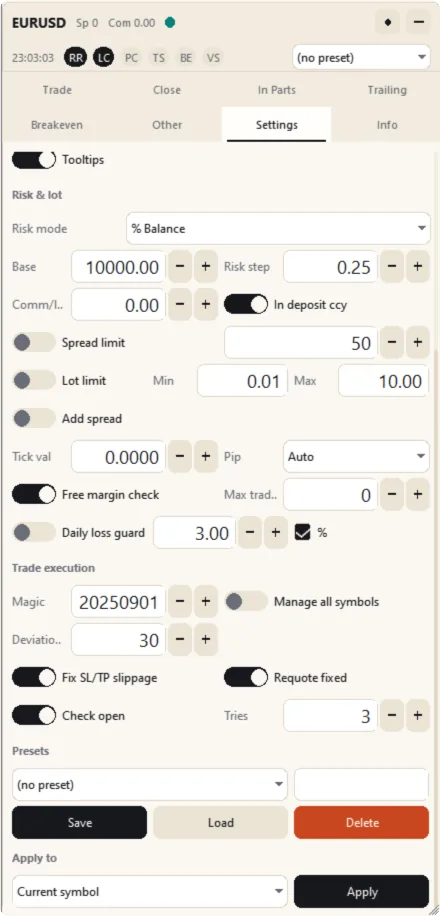
| Control | Description | Input |
|---|---|---|
| Risk mode | What the risk refers to: a fixed amount in the account currency; a percentage of the balance, the equity or the free margin; a percentage of a custom amount; a percentage of the balance at the start of the previous day, week or month; or a percentage of the largest lot the free margin allows. | Inp_Risk_Mode |
| Base | The custom amount for “percentage of a custom amount”. | Inp_Risk_CustomBase |
| Risk step | The step of the minus and plus buttons of Risk. | Inp_Risk_Step |
| Comm/lot and In deposit ccy | Your commission per lot, and whether it is already in the account currency. | Inp_Risk_CommissionPerLot, Inp_Risk_CommissionInDeposit |
| Spread limit and its value | Blocks new entries while the spread is above the limit, in points. | Inp_Trade_SpreadLimitOn, Inp_Trade_SpreadLimit |
| Lot limit, Min, Max | Keeps the calculated lot between Min and Max. | Inp_Risk_LotLimitOn, Inp_Risk_LotMin, Inp_Risk_LotMax |
| Add spread | Includes the spread in the risk and profit figures. | Inp_Risk_AddSpread |
| Tick val | A custom tick value; 0 uses the value booked by the account. | Inp_Risk_CustomTickValue |
| Pip | The size of one pip: Auto (10 points on symbols with 3 or 5 digits, otherwise 1 point), 1, 10 or 100 points. | Inp_Risk_PipOption |
| Free margin check | Refuses an order that the free margin cannot cover. | Inp_Risk_FreeMarginCheck |
| Max trades | The maximum number of open positions; 0 means unlimited. | Inp_Risk_MaxOpenTrades |
| Daily loss guard, its value and % | Blocks new entries once the loss of the day reaches the limit (see Chapter 20). | Inp_Risk_DailyLossOn, Inp_Risk_DailyLoss, Inp_Risk_DailyLossPct |
The maximum exposure per symbol, in lots, is set with the input
Inp_Risk_MaxExposureLots only.
12.3 Trade Execution
| Control | Description | Input |
|---|---|---|
| Magic | The magic number of the EA’s orders; 0 manages every position. | Inp_Trade_Magic |
| Manage all symbols | Manages the positions of every symbol from this chart. | Inp_Trade_ManageAllSymbols |
| Deviation (pts) | The largest price deviation accepted for a market order. | Inp_Trade_Deviation |
| Fix SL/TP slippage | Recalculates stop losses and take profits entered in pips from the fill price after slippage. | Inp_Trade_FixSlippage |
| Requote fixed | Retries at the new price after a requote. | Inp_Trade_RequoteFixed |
| Check open and Tries | Verifies that the position exists after sending, with this number of attempts. | Inp_Trade_CheckOpen, Inp_Trade_Tries |
12.4 Presets and Apply
Type a name and press Save to store the current settings as a preset; choose a preset in the list and press Load or Delete. The preset list in the header loads a preset with one click. Apply to (current symbol, all positions or the selected positions) with Apply applies the current settings to positions that are already open.
13 Info Tab and Statistics
The Info tab shows facts about the symbol and the account, and statistics of the trades the EA manages.
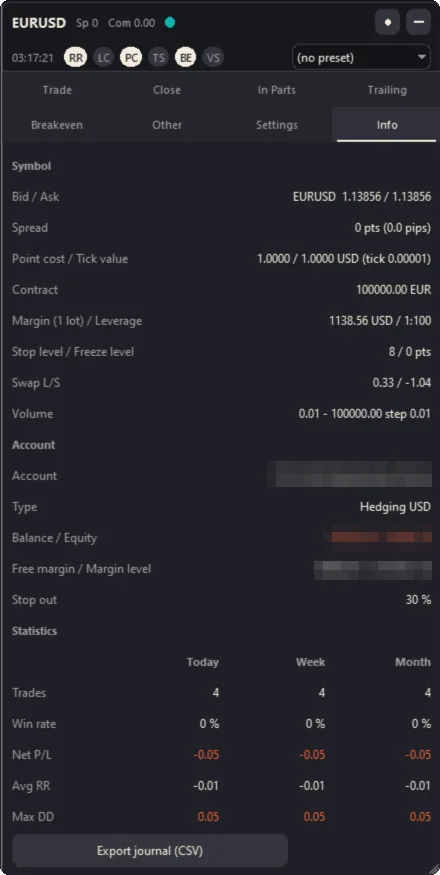
- Symbol: Bid and Ask, spread, point cost and tick value, contract size, margin per lot and leverage, stop level and freeze level, swaps, volume limits and volume step.
- Account: login and server, the account type and the account currency, balance and equity, free margin and margin level, stop-out level.
- Statistics for today, this week and this month, calculated from the account history
for the closed positions the EA manages (its magic number and, unless Manage all
symbols is on, the chart symbol):
- Trades and Win rate;
- Net P/L: profit, swap, commission and fees;
- Avg RR: the average realized RR, that is, the profit divided by the initial risk recorded from the stop loss of the entry deal;
- Max DD: the largest drawdown of the closed-trade equity curve.
The statistics refresh every 10 seconds while the Info tab is visible. MetaTrader 4 gives an Expert Advisor only the closed trades of the period selected in the Account History tab of the Terminal window. Right-click that tab and choose All History (or a period that covers the current month), otherwise the statistics miss the older trades.
Export journal (CSV) writes the file
MQL4\Files\StoplineTradeManager\Journal\<login>_trades.csv (separator ;) with the
position ID, symbol, type, volume, entry and exit time and price, SL, TP, risk, profit,
RR, status, comment and the screenshot files of each position.
14 Alerts and Notifications
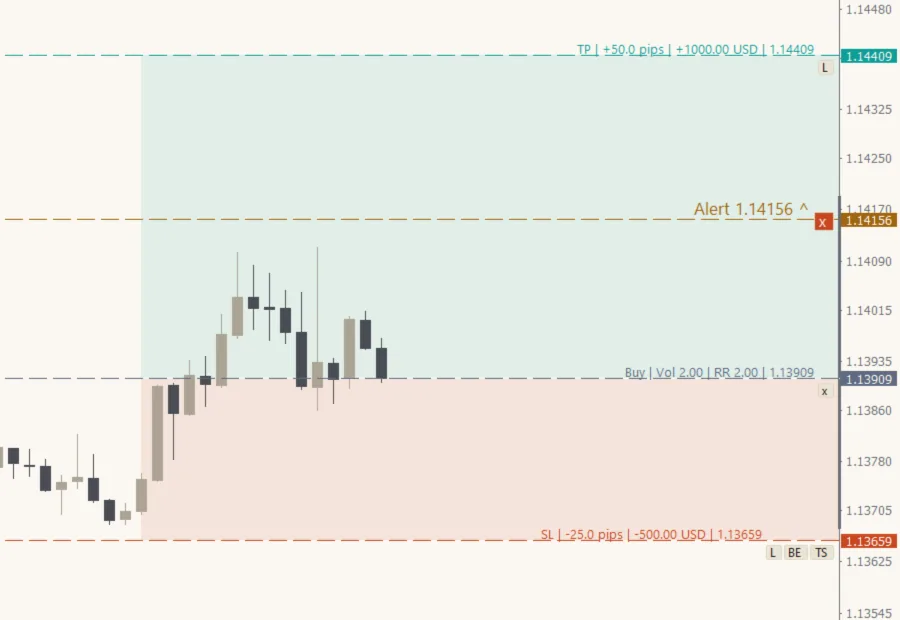
- Price alerts. The ! button places an amber, dashed alert line a few pips above the market; A places it at the mouse pointer. Drag the line by its tab to the level you want (Section 6.1); x deletes it and Shift+A removes all alert lines. The alert fires when the Bid crosses the line. A price alert fires once and is removed after its last repetition.
- Your own lines. With Support / resistance line break alerts on (input
Inp_Alert_LineBreak), the horizontal lines and trend lines you draw yourself are watched too; they re-arm for the next break. - Delivery. The input
Inp_Alert_Typeis the sum of the methods you want: 1 pop-up, 2 sound, 4 push notification, 8 e-mail. The default, 3, is pop-up and sound.Inp_Alert_MaxIterationsandInp_Alert_TimeoutSecrepeat the alert. Push notifications and e-mail need the Notifications and Email tabs of the terminal options. - Per-symbol sound. With Per-symbol sound announcement on, the alert plays
Sounds\TA\<SYMBOL>.wav(for exampleSounds\TA\EURUSD.wav) if you add such a file, so you can hear which symbol is concerned (see Chapter 22). - Show alert lines on all timeframes keeps the lines visible on every timeframe.
Notifications. Short messages in the top-right corner of the chart (click one to dismiss it) report every action of the EA and every problem: trade errors, spread limit, maximum lot, a missing cross rate, AutoTrading off and the daily loss limit.
15 Screenshots and the Trade Journal
- Shot on the minimized toolbar, or P, saves a screenshot of the chart.
- Automatic screenshots (input
Inp_Shot_Auto) takes one when a position is opened, closed or partially closed. - The files are named
<SYMBOL>_<date>_<time>_<event>_<ticket>_<BUY|SELL>.pngand saved inMQL4\Files\Stopline Screenshots\(inputInp_Shot_Folder). A caption in the Screenshot caption color is drawn on the picture (symbol, timeframe, event, ticket, server time, bid and ask); Hide the terminal’s deal arrows removes the deal arrows. - The journal export lists the screenshot files of each position, so a trading journal can link every trade to its pictures.
16 Hotkeys
Every hotkey is an input of the Hotkeys group and can be changed there. Write a key as B, Shift+S, Ctrl+Shift+X, Num1, NumPlus or Shift+Up; leave the input empty to turn the hotkey off. The terminal keeps every combination with Alt for itself, so no hotkey uses Alt. Keys that MetaTrader 4 uses itself, such as F6, never reach the EA. Hotkeys do nothing while an input field has the keyboard focus or a confirmation is open; Esc closes a dialog or menu and removes a field highlight.
| Default | Action | Input |
|---|---|---|
| B, S | Buy or sell at market. | Inp_Key_Buy, Inp_Key_Sell |
| Shift+B, Shift+S | Place a Buy Stop or a Sell Stop. | Inp_Key_BuyStop, Inp_Key_SellStop |
| Shift+U, Shift+J | Place a Buy Limit or a Sell Limit. | Inp_Key_BuyLimit, Inp_Key_SellLimit |
| Ctrl+Shift+B, Ctrl+Shift+S | Place a Buy Stop Limit or a Sell Stop Limit. | Inp_Key_BuyStopLimit, Inp_Key_SellStopLimit |
| Shift+Enter | Place the pending order of the plan. | Inp_Key_Place |
| N | Show or hide the lines (new order). | Inp_Key_NewOrder |
| U, J | Show the buy or the sell lines. | Inp_Key_LinesBuy, Inp_Key_LinesSell |
| T | Cycle the order type. | Inp_Key_LineType |
| Shift+C | Close all positions (the selected ones when positions are ticked; Section 5.5). | Inp_Key_CloseAll |
| C | Close the percentage in the Close % field (of the selected positions when positions are ticked). | Inp_Key_ClosePercent |
| 1 … 9 | Close 10% … 90% (of the selected positions when positions are ticked). | Inp_Key_Close10 |
| X, Shift+X, Ctrl+Shift+X | Delete all pending orders, the limit orders or the stop orders. | Inp_Key_DeleteOrders, Inp_Key_CloseLimit, Inp_Key_CloseStop |
| E | Move to breakeven now (the selected positions when positions are ticked). | Inp_Key_Breakeven |
| A, Shift+A | Place an alert at the mouse pointer, or remove all alerts. | Inp_Key_Alert, Inp_Key_AlertClear |
| Shift+E | Edit the order comment. | Inp_Key_EditComment |
| P | Save a screenshot. | Inp_Key_Screenshot |
| M | Minimize or restore the panel. | Inp_Key_Minimize |
| H | Hide or show the trading levels. | Inp_Key_HideOrders |
| R, K | Turn RR or Lot Calc on or off. | Inp_Key_RR, Inp_Key_LotCalc |
| G, L | Return the entry to the market price; lock the SL and TP. | Inp_Key_Magnet, Inp_Key_Lock |
| – | Lock the TP only or the SL only. | Inp_Key_LockTP, Inp_Key_LockSL |
| Q, Shift+Up, Shift+Down | Select the next line; move it up or down by one step. | Inp_Key_LineNext, Inp_Key_LineUp, Inp_Key_LineDown |
| Shift+T, Shift+L, Shift+P | Place the TP, the SL or the entry at the mouse pointer. | Inp_Key_TPAtMouse, Inp_Key_SLAtMouse, Inp_Key_PriceAtMouse |
| Shift+R | Reverse the lines. | Inp_Key_Reverse |
| I | Switch between prices and pips. | Inp_Key_PricePip |
| – | Turn one-click trading on or off. | Inp_Key_OneClick |
| Shift+D | Switch between the light and the dark theme. | Inp_Key_Theme |
| Shift+1 … Shift+9 | Change the chart period to M1, M5, M15, M30, H1, H4, D1, W1 or MN. | Inp_Key_PeriodM1 |
| Ctrl+Right, Ctrl+Left | Change to the next or previous chart period. | Inp_Key_PeriodNext, Inp_Key_PeriodPrev |
| Z, Shift+Z | Zoom the chart in or out. | Inp_Key_ZoomIn, Inp_Key_ZoomOut |
| Shift+Right, Shift+Left | Change to the next or previous Market Watch symbol. | Inp_Key_SymbolNext, Inp_Key_SymbolPrev |
| Tab, NumPlus, NumMinus | Highlight the next input field; change it up or down by one step. | Inp_Key_FieldNext, Inp_Key_FieldUp, Inp_Key_FieldDown |
17 Settings, Presets and Precedence
Settings come from three places:
- Inputs (the EA dialog): the starting values.
- Saved settings: with Save settings on, the panel remembers every change per symbol in the data folder.
- Presets: named sets of settings that you save and load yourself.
Precedence. On a normal start (a restart of the terminal, a change of timeframe or a reinstallation of the same version) the saved settings take precedence over the inputs, so the panel returns as you left it. When you change inputs in the EA dialog, the inputs take precedence and overwrite the saved settings. With Save settings off, nothing is remembered and every start uses the inputs. Loading a preset replaces the current settings until you change them again.
Positions keep their own copies of their take-profit levels, the partial-close levels already reached, their hidden stops and whether breakeven, trailing and partial close are on for them. The levels and distances of breakeven, trailing and partial close come from the current settings, so a change on the panel also applies to the open positions that have the function on. Apply switches a function on or off for open positions. With Save settings off, a restart brings back the inputs and open positions follow those values; the EA then warns you when it starts with such positions.
18 Symbol Switching
Symbol switch in the Settings tab adds previous and next buttons to the header;
Shift+Right and Shift+Left work without them. The symbols come from the Market Watch.
Switch every open chart (input Inp_Switch_AllCharts) switches all open charts to the
same symbol, and Auto switch timer (input Inp_Switch_TimerSec) changes the symbol
every N seconds. The settings of each symbol are saved before every switch.
19 Positions and Orders in MetaTrader 4
The EA works the same way on MetaTrader 4 and MetaTrader 5. A few things differ because MetaTrader 4 handles orders differently:
- One position per order. Every order opens a separate position with its own ticket, lines, take-profit levels, partial-close state and stops. Parts opens that number of positions.
- Partial close. MetaTrader 4 closes a part by closing the position and reopening the
rest under a new ticket, with the same stop loss, take profit and magic number; the
terminal replaces the order comment of the rest with
from #<old ticket>. The EA follows the position to its new ticket, keeps its levels already reached and its hidden stops, and counts it as one trade in the statistics and the journal. - Stop-limit orders are kept by the EA until the stop price trades (Section 5.2), so they need the terminal running.
- Sending orders. MetaTrader 4 sends one trade request at a time and waits for the server’s answer, so the panel does not react while an order is being sent.
- Stop level. Many MetaTrader 4 servers do not accept a stop loss, take profit or pending order closer to the price than the symbol’s stop level (on the MetaQuotes demo 8 points; the Info tab shows it). Breakeven and trailing move a stop only to a level that keeps this distance.
- Timeframes. MetaTrader 4 charts have nine periods (M1, M5, M15, M30, H1, H4, D1, W1 and MN); the period hotkeys and the Timeframe of the trailing indicators use these.
- Statistics cover the period loaded in the Account History tab (Chapter 13).
20 Setting the Guards for Account Rules
Many trading accounts come with rules: a daily loss limit, a maximum loss and sometimes limits on the number of open trades or the lot size. The EA enforces the limits that you configure. It does not know the rules of your account, so read them and set the guards with room to spare.
- Daily loss guard (Settings tab; inputs
Inp_Risk_DailyLossOn,Inp_Risk_DailyLoss,Inp_Risk_DailyLossPct): once the loss of the day reaches the limit, new entries are blocked until the next server day and the health dot turns orange. The loss of the day is the closed result of today plus the floating result of the open positions the EA manages. The limit is an amount in the account currency or a percentage of the current balance. The guard blocks new trades; it does not close open positions. - Many rules measure the daily limit from the balance or the equity at the start of the day. Set the guard below the limit of your account, and use Total loss on the Close tab to close everything when the floating loss reaches an amount.
- Max trades (input
Inp_Risk_MaxOpenTrades): no new position once this number of positions is open. - Maximum exposure per symbol (input
Inp_Risk_MaxExposureLots): the lot of a new order is reduced so that the open volume of the symbol stays within the limit. - Lot limit (Min and Max): keeps every calculated lot within the range.
- Risk mode “percentage of the balance at the start of the previous day” keeps the risk base constant throughout the day.
- Spread limit and the input
Inp_Trade_TimeCheck(trading session) keep orders out of wide spreads and closed sessions.
21 The Strategy Tester
The EA can be loaded in the Strategy Tester. In visual mode the panel and the lines are drawn, but the tester does not pass mouse clicks, drags or typing to an Expert Advisor, so the panel cannot be operated there; push notifications, e-mail alerts and the symbol switch are not available and the EA reports this. In a non-visual test the EA opens one BUY position with the minimum volume, a stop loss and a take profit, and closes it one hour of test time later (after the session, guard and free-margin checks), because the automatic check of the MQL5 Market requires a trade operation.
22 Files and Folders
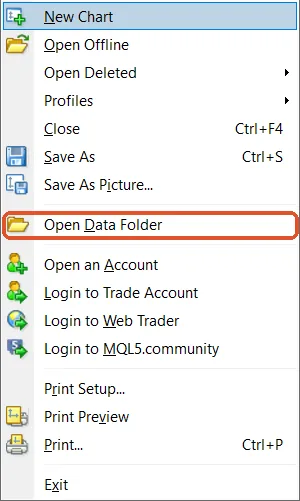
The EA stores its files in the data folder of the terminal. Open the data folder with File › Open Data Folder; on a Mac, see Section 2.11 for its place in Finder.
| Folder in the Data Folder | Contents |
|---|---|
MQL4\Experts\Market\ |
The EA itself, installed by the terminal from the Market. |
MQL4\Files\StoplineTradeManager\Settings\ |
Your settings per symbol (<SYMBOL>.ini) and the shared settings (_global.ini). |
MQL4\Files\StoplineTradeManager\Presets\ |
Saved presets (<name>.ini). |
MQL4\Files\StoplineTradeManager\State\ |
The state of each position (levels already reached, hidden stops, take-profit levels), virtual pending orders and alert lines, so that they survive a restart. |
MQL4\Files\StoplineTradeManager\Journal\ |
The exported trade journal (<login>_trades.csv). |
MQL4\Files\StoplineTradeManager\Logs\ |
Log files (<SYMBOL>.log), only with the input Inp_Sys_LogToFile on. |
MQL4\Files\Stopline Screenshots\ |
Screenshots; the folder name is the input Inp_Shot_Folder. |
Two kinds of files can be added by you:
- Input sets (
.setfiles) inMQL4\Presets\, loaded with Load on the Inputs tab of the EA dialog. - Per-symbol alert sounds in
Sounds\TA\, named after the symbol, for exampleSounds\TA\EURUSD.wav(see Chapter 14).
23 Troubleshooting
| Symptom | Cause and Solution |
|---|---|
| The health dot is amber and the panel reports that AutoTrading is off. | Enable AutoTrading on the toolbar and Allow live trading on the Common tab of the EA dialog. |
| The health dot is orange and the panel reports the daily loss limit. | The daily loss guard blocks new entries until the next day; turn the guard off in the Settings tab if you do not want it. |
| The health dot is orange and there is no connection. | The terminal is not connected to the trade server; check the connection status in the bottom-right corner of the terminal. |
| A line cannot be moved. | Point at the line until its tab appears, then drag the tab (Section 6.1). No tab appears over the panel or the line buttons, or when the input Inp_Lines_Grips is off; you can also double-click the line to select it and then drag it. |
| “No tick value / cross rate” | The terminal has no quote for the conversion pair yet. Open that symbol in the Market Watch, or set Tick val in the Settings tab. |
| “Risk too small for the minimum lot” | Raise the risk or widen the stop. The EA never rounds a lot up above your risk, except when Lot limit Min sets a minimum, which the plan states. |
| BUY and SELL are unavailable. | A pending order type is selected. Set the type to Market or press M. |
| “Virtual order held: …” | The trade guard blocks new entries at the moment (daily loss, spread, session or AutoTrading); the order fires when the block clears. |
| The hotkeys do nothing. | An input field has the keyboard focus (click the chart), a dialog is open, or another action uses the key (the Experts log names it). |
| A push notification or e-mail alert does not arrive. | Enable Notifications or Email in the terminal options. They are not available in the Strategy Tester. |
| The panel shows a scroll bar or only part of a tab. | The chart, or the input Inp_Panel_Height, is smaller than the tab: scroll with the mouse wheel, drag the grip, lower Scale or enlarge the chart. |
| There are no lines on the chart. | Press Lines (N). The last state is remembered. |
| A virtual order or hidden stop did not act. | The terminal was not running or not connected at that moment (see Section 11.1). |
| Objects remain on the chart. | The EA deletes only its own objects; lines you draw yourself are never touched. |
| Chinese or Japanese text shows boxes. | The panel uses the fonts Microsoft YaHei UI and Yu Gothic UI. Install them, or choose another language. |
Logs. The Experts tab of the terminal’s Terminal window shows what the EA does. With
the input Inp_Sys_LogToFile on, it also writes
MQL4\Files\StoplineTradeManager\Logs\<SYMBOL>.log; the input Inp_Sys_LogLevel sets the
detail.
24 Glossary
| Term | Meaning |
|---|---|
| Breakeven | A stop loss moved to the entry price, so that the trade can no longer lose, apart from costs and slippage. |
| Hedging account | An account that holds several positions per symbol. |
| Hidden stop | A stop loss or take profit kept by the EA on your computer instead of by the broker. |
| Limit order | An order to buy below or sell above the current price (a pullback). |
| Lot | The trade size; the contract size on the Info tab says how much 1.00 lot is. The volume step is the smallest change of the lot. |
| Magic number | A number the EA writes on its orders so that it can tell its positions from others. |
| Margin, free margin | The money reserved for open positions, and the money still available. |
| Market order | An order to buy or sell now at the current price. |
| OCO | One cancels the other: when one linked order is filled, the others are deleted. |
| Pip | 10 points on symbols with 3 or 5 digits, otherwise 1 point (Pip in the Settings tab). |
| Point | The smallest price step of a symbol, for example 0.00001 on a symbol quoted with five digits. |
| Preset | A named set of settings that you can save and load. |
| Risk | The money lost if the stop loss is reached: lot × stop distance × value per point, plus commission and, with Add spread, the spread. |
| RR (reward-to-risk ratio) | The take-profit distance divided by the stop-loss distance; RR 2 means that the target is twice the stop. |
| Spread | The difference between Ask and Bid. |
| Stop level, freeze level | The broker’s minimum distance for stops, and the distance within which orders cannot be changed. |
| Stop loss (SL) | The price at which a losing position is closed. |
| Stop order | An order to buy above or sell below the current price when the price reaches it (a breakout). |
| Stop-limit order | An order that places a limit order at the limit price when the stop price trades. |
| Take profit (TP) | The price at which a winning position is closed. |
| Tick value | The value of one tick for 1.00 lot, in the account currency. |
| Trailing stop | A stop loss that follows the price as it moves in your favor. |
| Virtual order | A pending order kept by the EA on your computer instead of by the broker. |
25 Version History
| Version | Date | Changes |
|---|---|---|
| 1.03 | October 2026 | A value typed into a box is kept when you press Enter (a refresh could put the old value back). The trailing stop no longer steps back a fraction or moves by less than the Step right after a move. The automatic cancellation level stays on after a crossing with no pending order. Dragging the window’s corner no longer scrolls the chart. Screenshot captions show the bid and ask; position labels show the whole ticket. Clearer notifications for virtual orders, the daily loss guard and Clear alerts. |
| 1.02 | October 2026 | Choosing an item in a drop-down list no longer leaves the input box under it selected. |
| 1.01 | September 2026 | Smoother window resizing: no flashing or empty fields while the corner is dragged. |
| 1.00 | September 2026 | Initial release. |
26 Risk Disclaimer
Trading carries a risk of loss, and a loss can be larger than you planned. Stopline Trade Manager is a tool for placing and managing your own trades; it gives no signals, advice or promise of results.
The EA executes what you set. An incorrect setting, a lost connection, a closed terminal, slippage, price gaps, requotes or broker rules can lead to results you did not plan. Test every new setup on a demo account first. Virtual orders, stop-limit orders and hidden stops work only while the terminal is running. The figures in this manual are examples, not expectations.
MetaTrader, MQL4 and MQL5 are trademarks of MetaQuotes Ltd.
A All Inputs
The inputs of version 1.03 in the order of the EA dialog, with their default values. The label is the text shown in the dialog. MetaTrader 4 shows no group headings; the groups below follow the same order.
Every input with its default and range is listed in Appendix A of the PDF manual.